
What Are Claude Cowork Plugins?
Plugins are integrations that connect Claude Cowork to external services and tools. When you install a plugin, you give Claude the ability to read from and write to a connected service — your Slack workspace, Google Calendar, CRM, document storage, or project management tool.
Without plugins, Claude is limited to what it can do inside the Cowork app: reading local files, generating text, and creating HTML outputs. With plugins, Claude can pull your calendar events to prep for a meeting, search your Slack history to find a discussion, create a Jira ticket from a conversation, or draft an email in your Gmail.
Plugins are what transform Cowork from a smart writing tool into a connected workspace.
How Plugins Differ from Skills
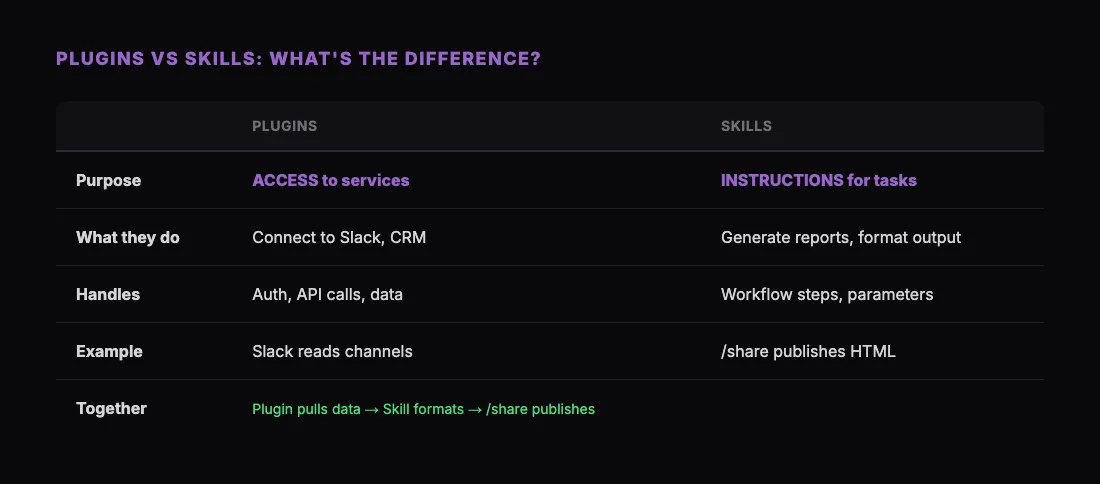
This distinction trips up a lot of new users, so it is worth addressing directly.
Plugins provide access. They connect Claude to an external service. A Slack plugin lets Claude read channels and send messages. A Google Calendar plugin lets Claude see your schedule and create events. Plugins handle authentication, API calls, and data formatting.
Skills provide instructions. They tell Claude how to perform a specific task. A skill might instruct Claude to generate a standup update, format it a specific way, and post it to Slack. But without the Slack plugin, Claude cannot actually send that message.
The most powerful workflows combine both. A plugin connects Claude to your data source. A skill tells Claude what to do with that data. For example: a CRM plugin pulls your pipeline data, a skill formats it into a forecast report, and the /share skill from sharable.link publishes it as a shareable URL.
Neither replaces the other. Plugins without skills give Claude raw access but no workflow. Skills without plugins give Claude instructions but no reach. Together, they create end-to-end automation.
The Plugin Marketplace
Cowork includes a built-in plugin marketplace where you can browse, install, and manage plugins. To access it, open Cowork and navigate to the marketplace section in the sidebar.
The marketplace is organized by category:
- Communication — Slack, email, messaging platforms
- Productivity — Calendar, task management, note-taking
- Development — GitHub, Jira, linear, CI/CD tools
- CRM and Sales — HubSpot, Salesforce, pipeline tools
- Documents — Google Drive, Dropbox, PDF viewers
- Analytics — SEO tools, web analytics, reporting platforms
Each plugin listing includes a description, required permissions, and user reviews. Before installing, you can see exactly what data the plugin will access.
How to Install a Plugin
Step 1: Open the Marketplace
In Cowork, click on the marketplace icon or navigate to it from the sidebar. You can also search for a specific plugin by name.
Step 2: Find the Plugin You Need
Browse by category or use the search bar. If you are not sure what you need, start with the most popular plugins in your work area — most teams begin with Slack, Google Calendar, and their CRM.
Step 3: Review Permissions
Before installing, read the permission requirements. A Slack plugin will need access to read messages and post in channels. A calendar plugin will need read/write access to your events. Make sure you are comfortable with the access level.
Step 4: Install and Authenticate
Click install, then follow the authentication flow. Most plugins use OAuth, which means you will be redirected to the service (Slack, Google, etc.) to authorize the connection. You will not need to copy API keys manually.
Step 5: Verify the Connection
After installation, test the plugin with a simple request. Ask Claude "What meetings do I have today?" (for a calendar plugin) or "What was discussed in #general yesterday?" (for a Slack plugin). If Claude responds with live data, the plugin is working.
Recommended Plugins by Role
For Everyone
Slack integration. Read channels, search message history, send messages, and create canvases. Almost every team uses Slack, and connecting it to Claude means you can search, summarize, and draft without switching windows.
Google Calendar. View your schedule, find free time, create events, and prep for meetings. Claude can generate meeting agendas based on your calendar context.
PDF viewer. Open, annotate, fill forms, and sign PDFs directly in Cowork. This eliminates the need for separate PDF tools for most common tasks.
For Sales Teams
HubSpot or Salesforce connector. Pull contact data, deal information, and pipeline metrics. Combine with sales skills for account research, outreach drafting, and forecast generation.
Email integration. Read recent emails, draft responses, and create follow-up sequences. Keeps your sales communication in one workspace.
For Marketing Teams
SEO tools (Ahrefs, etc.). Keyword research, site auditing, competitor analysis, and rank tracking directly accessible to Claude. Combine with content skills to create SEO-optimized drafts.
Web analytics. Pull traffic data, conversion metrics, and performance trends. Useful for generating marketing reports and identifying content opportunities.
For Engineering Teams
Jira / Linear. Create tickets, update statuses, and pull sprint data. Combine with sprint planning skills for complete workflow automation.
GitHub. Review PRs, check deployment status, and manage issues. While Claude Code handles most git workflows natively, the Cowork plugin is useful for non-terminal users who still need GitHub visibility.
For Operations
Google Drive. Search and access documents across your organization. Useful for pulling reference material and policy documents into conversations.
Task management tools (Todoist, TickTick). Create and manage tasks, track progress, and generate productivity reports.
Managing Your Plugins
Updating Plugins
Plugins update through the marketplace. Cowork will notify you when updates are available. Updates may include new features, security patches, or changes to API compatibility.
Disabling Plugins
If you do not need a plugin temporarily, you can disable it without uninstalling. This revokes Claude's access to the service but preserves your configuration so you can re-enable it later.
Removing Plugins
To fully remove a plugin, go to your installed plugins list and click remove. This revokes all access tokens and deletes the connection configuration. You will need to reinstall and re-authenticate if you want it back.
Managing Permissions
You can review and adjust plugin permissions at any time. If a plugin requests additional permissions after an update, Cowork will ask you to approve them before they take effect.
Plugin Security Considerations
Since plugins connect Claude to services that contain sensitive data, security matters:
Review permissions before installing. Only install plugins from trusted sources. The marketplace vets plugins, but always check what access is being requested.
Use the principle of least privilege. If a plugin offers read-only and read-write modes, start with read-only until you are confident in the workflow.
Revoke access when not needed. If you stop using a plugin, remove it. Active connections that nobody monitors are an unnecessary risk.
Audit periodically. Check your installed plugins quarterly. Remove anything you are not using. Update anything that has a pending update.
Combining Plugins with Skills and /share
The highest-impact workflow pattern in Cowork is: Plugin pulls data. Skill processes it. /share publishes it.
Here is a concrete example:
- The Ahrefs plugin pulls keyword data and competitor rankings.
- A marketing skill turns that data into an SEO audit report formatted as HTML.
- The
/shareskill from sharable.link publishes the report to a URL. - You send the link to your content team.
No manual data export, no copying between tools, no deployment. The entire pipeline runs inside Claude's conversation with you.
For more on skills specifically and how to install them, see our Claude Skills install guide. For productivity-focused skill recommendations that pair well with plugins, check out the best Cowork skills for productivity.
Getting Started
If you are new to Cowork plugins:
- Install Slack and Calendar first. These two plugins cover the most common needs and give you an immediate productivity boost.
- Add your role-specific tool. CRM for sales, SEO tools for marketing, Jira for engineering.
- Install the /share skill from sharable.link/install to complete the output pipeline — generate something with Claude, share it with anyone.
- Experiment with combining plugins and skills. The real value is not in any single plugin but in how they work together inside Claude's workspace.
Plugins are the connective tissue of the Cowork experience. Without them, Claude is limited to what it knows and what is on your local machine. With them, Claude has access to your entire professional tool stack — and the skills to put that access to work.